

Container Style & Size Queries
Published:
Container Queries are being referred to by many as the modern approach to responsive design! Which sounds like a big claim but in all fairness its not difficult to see why. So what are Containers Queries?
Container queries come in two types: container size queries and container style queries. Though technically all elements on a webpage are considered as style containers before we even start, but to help us create responsive designs we can now target and query particular containers using the @container at-rule property.
Most of you are probably familiar with the @media at-rule property already and though similar the @container at-rule property works a little differently.
@container queries help to give us a more targeted and controlled approach over styling any or all elements within a containing (parent) element based on its dimensions (generally its inline-size width). Rather than with @media queries which are based on a devices viewport width, or other device characteristics.
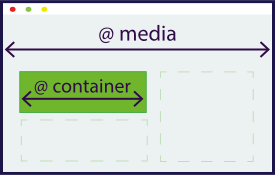
Being able to target the containing element and its contents like this means we can now create flexible modular components with reusable and transferable patterns such as product cards, articles or adverts.
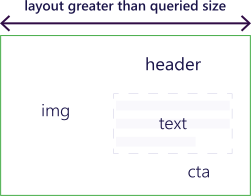
These modular style components can then be reused multiple times across a webpage, without needing to know specifically the size of the space each time its being placed. Due to the contents layout being controlled by the available space the container occupies rather than its contents.
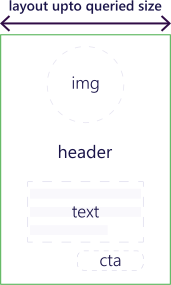
Which means these modular style components can not only be reused across your whole website, but are also transferable to other future website projects you may build.
Container Size Queries
As we've already explained size queries enable us to apply styles to elements based on the current size of the containing (parent) element, generally by its width (inline) but also possible by its orientation or aspect ratio.
The containing element though needs to be explicitly declared as a size query container or else it will default to being a style query container.
Declaring an Element a Size Container
We firstly need to declare our parent element as a container so that the browser will know we will want to query it when it meets the required conditions and then apply the relevant styling to the elements within it.
Container-type property
We can do this by giving it a container-type property with a value of size, inline-size, or normal.
.sprout_advert {
  container-type: inline-size;
}
- size - The query will be based on the inline (width) and block (height) dimensions of the container. Applies layout, style, and size containment to the container.
- inline-size - The query will be based on the inline (width) dimensions of the container. Applies layout, style, and inline-size containment to the element.
- normal - The element is not a query container for any container size queries, but remains a query container for container style queries.
Container-name Property
We can also apply a container-name property, which allows us to only query containers with that name. Though naming your containers isn't strictly necessary, its probably good practice to name them from the start, as an unnamed container can match with any query that doesn't target a specific container when the conditions are met. This way you'll also make your code much more clean, clear and far less likely to end up matching multiple conditions you weren't expecting.
.sprout_advert {
  container-name: sproutius_ad;
  container-type: inline-size;
}
Container Shorthand
We can also make a single declaration by using the shorthand container which combines both the container-name and container-type properties together like this.
.sprout_advert {
  container: sproutius_ad / inline-size;
}

/* container: container-name / container-type; */
Querying a Container
Once we have declared our element as a container we then need to query it by using the @container at-rule property, this lets the browser know its a container query rather then some other type of at-rule.
@container <container-name> <container-query> {   <stylesheet> }

.sprout_advert {
  container-name: sproutius_ad;
  container-type: inline-size;
}
We can then follow the at-rule with our container-name (if using one).
Then we add the container-query within ( ) brackets, this is where we set out the condition(s) we want the container to match before it applies the new style properties.
@container sproutius_ad (width > 60ch) {   <stylesheet> } /* With container-name */

@container  (width > 60ch) {   <stylesheet> } /* Without container-name */

.sprout_advert {
  container-name: sproutius_ad;
  container-type: inline-size;
}
- Query Lengths - In addition to inline-size (width) you can query other lengths such as an element’s aspect-ratio, block-size (height), and orientation (portrait and landscape).
- Range Syntax - Size queries also support the range syntax - greater than (>), less than (<), equal to (=) and combinations of all three, such as "more than or equal to" (>=) and “less than or equal to” (<=).
- Logical Keywords - We can also write queries that meet multiple conditions with logical keywords like and, or, and not.
@container sproutius_ad (width > 60ch) {   }
/* when sproutius_ad width is greater than 60ch */

@container sproutius_ad (orientation: landscape) {   }
/* when sproutius_ad orientation equals landscape */

@container sproutius_ad (orientation: landscape) and (min-width: 60ch) {   }
/* when sproutius_ad orientation equals landscape and is min-width of 60ch */
The container-query is then followed by { } within these we write the new properties we want to apply to the element(s) inside the container we wish to make changes to.
@container sproutius_ad (width > 60ch) {

    p {
        color: rgb(29, 13, 73);
    }
    .callout_text {
        color: rgb(48, 3, 70);
    }
}
Container Style Queries
We can also query a container by its parents styles rather than its size. So this time when the styles meet the required conditions, we can apply our new style properties to the containers elements. At present the only style feature supported by style queries is CSS custom properties (also known as CSS variables) and browser support isn't as great as it is for size containers, you can check the latest browser support for container style queries at caniuse.com
But this shouldn't put you off using them as being able to query our CSS custom properties makes this a really useful at-rule. Such as with the growing popularity in website design for offering users different colour schemes, or at the very least a dark mode colour scheme for accessibility reasons done using CSS custom properties. We can use style queries to target specific containers and their contents when the colour scheme changes.
Just like this advert below, which is an example of the modular container pattern we first mentioned, that can be temporarily added to a webpage. It may also have it's own styling pattern that differs to your main styling, but it still needs to change along with the rest of the webpage if the user implements a different colour scheme / mode. So lets see how we can do this.

Declaring an Element a Style Container
Now declaring an Element a Style Container isn't quite the same as with size queries, as all elements are by nature already regarded as style containers. So unlike size queries we don't need to actually declare an element with a container-type.
@container style(--color-scheme: dark) { }
Or even a container-name for that matter, though unless you want to query the style of all the elements on your page it's definitely a good idea to name your container and only target the elements you want to change with your query, such as with our advert.
Querying a Style Container
Though to write a style query we do need to wrap the query with a style() wrapper.
As you can see we have given our advert a container-name of sproutuis_ad which we then query the style using the custom property --color-scheme dark if the query is true then it will apply the following style changes to our advert.
.sprout_advert {
  container-name: sproutius_ad;
}

@container sproutius_ad style(--color-scheme: dark) {

    p {
        color: rgb(255, 255, 255);
    }
    .callout_text {
        color: rgb(225, 255, 116);
    }
}

As always should you have any questions or want more details on any of the areas covered, feel free to reach out to us via our Contact form.